
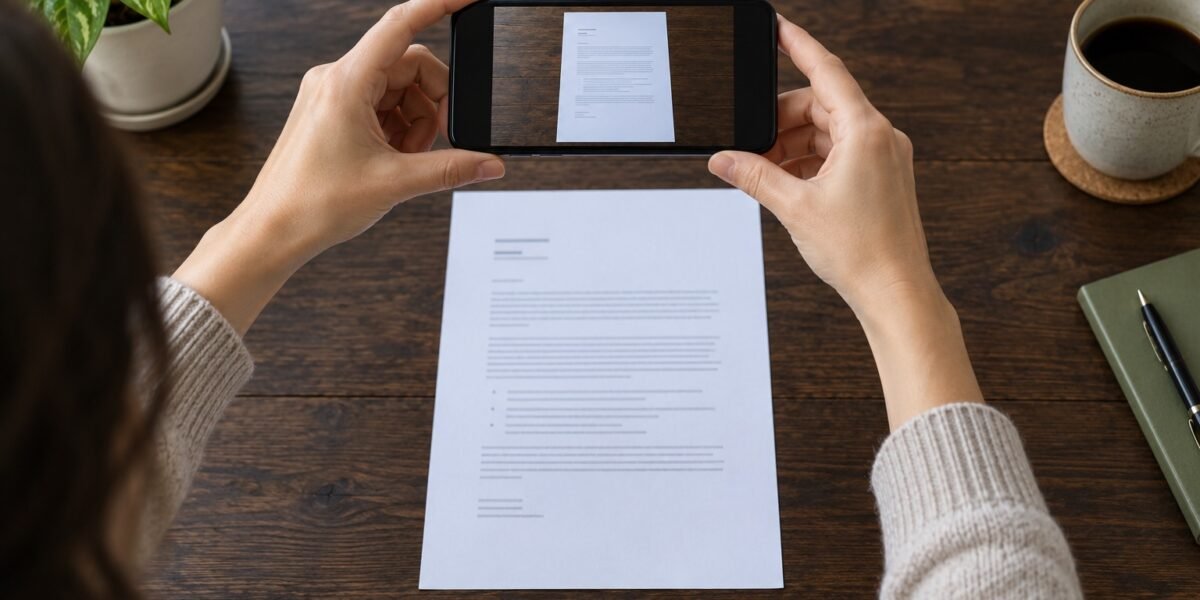
A phone scan is only useful if you can read the pages and find the file when someone asks for it. The difficult part is often what happens after the camera captures the paper: an unclear filename, missing second page, or PDF saved to an unexpected account. Use this workflow to finish the job rather than create another digital pile.
The steps below use Apple’s Files app on iPhone and Google Drive on Android. Button labels can vary with your app version and interface language. The cover is an illustration, not a screenshot of either app. Keep originals whenever an organization requires them; making a scan does not establish that a paper document can be discarded.
1. Prepare one complete document
Sort the pages into reading order before opening the app. Remove unrelated sheets from the background and use a flat surface with an even light source. If your hand or phone casts a shadow, move the paper or change your position instead of trying to rescue a very dark scan afterward.
Check both sides of each sheet. Decide whether a handwritten note on the back belongs in the file. For a document with attachments, make a quick page count so you can compare the finished PDF with the paper in front of you. Keep separate documents in separate files unless the recipient asks otherwise.
2. Capture the pages in your chosen app
On iPhone, open Files, tap More, then Scan Documents. Frame the page; use automatic capture or the shutter, adjust the corners if needed, and keep the scan. Add the remaining pages, finish, then choose a location and save. Apple documents the current workflow in its scanning instructions.
On Android, open Google Drive and tap the camera button. Capture the page, check the crop, and add further pages using the add control. Finish the scan, choose PDF, set the name and storage location, then save. See Google’s Android instructions for the app’s controls.
3. Inspect the saved PDF, not just the preview
Open the actual saved file. Check the first page, the last page, and every page containing small print, a signature, or an important number. Zoom in far enough to read those details. Make sure page edges, dates, and reference numbers survived the automatic crop.
Compare the page count with your paper stack. Rotate sideways pages and rescan any blurred sheet. Image cleanup should improve legibility without removing annotations or changing the document’s meaning. If you plan to search the text, test one distinctive phrase rather than assuming text recognition worked.
4. Name the file for a future search
Use a date, a recognizable subject, and a short document type: 2026-11-01-desk-delivery-receipt.pdf. Choose the date that matters for the record, such as the purchase date, and use that convention consistently. A descriptive name is more helpful than several files called Scan with different numbers.
For sensitive records, avoid putting unnecessary personal information in the filename: filenames can appear in shared lists and email previews. Keep the naming pattern compatible with your existing file system instead of creating a new convention only for scans.
5. Save to the intended place and check access
Confirm which account and folder the app used. “Saved” does not tell you whether the file is on this phone, in a personal cloud account, or in a work account. Put it in the appropriate document folder while the context is still fresh.
Before sending a cloud link, check its sharing settings and the intended recipient’s access. Our Google Drive sharing guide explains that separate step. Use the recipient’s required secure channel for sensitive documents, and avoid uploading private records to an unfamiliar conversion service just to shrink a file.
6. Finish with a retrieval test
Close the file and find it again from the folder or a filename search. If another device needs access, check there too. Open the attachment or link you intend to send and confirm it is the final version, not an earlier incomplete scan.
Once the correct copy is safely stored, remove unnecessary working duplicates according to your own retention needs. If scans are accumulating beside other downloads, use a short Downloads cleanup routine. The successful result is one readable, correctly named document you can retrieve—not simply a camera capture.
Cover: AI-generated editorial illustration.
Daniel · Daycraftly
I’m interested in technology that earns its place in your day. My focus is on useful gadgets, straightforward digital tools, and better ways to get work done. I like to look past the headline features and ask a simpler question: what problem does this solve? Expect clear comparisons, practical workflows, and ideas for making your digital life feel less complicated.
Join the conversation
Share a useful tip or ask a question. Comments are reviewed before publication. Your email address will not be displayed.


Leave a Reply