
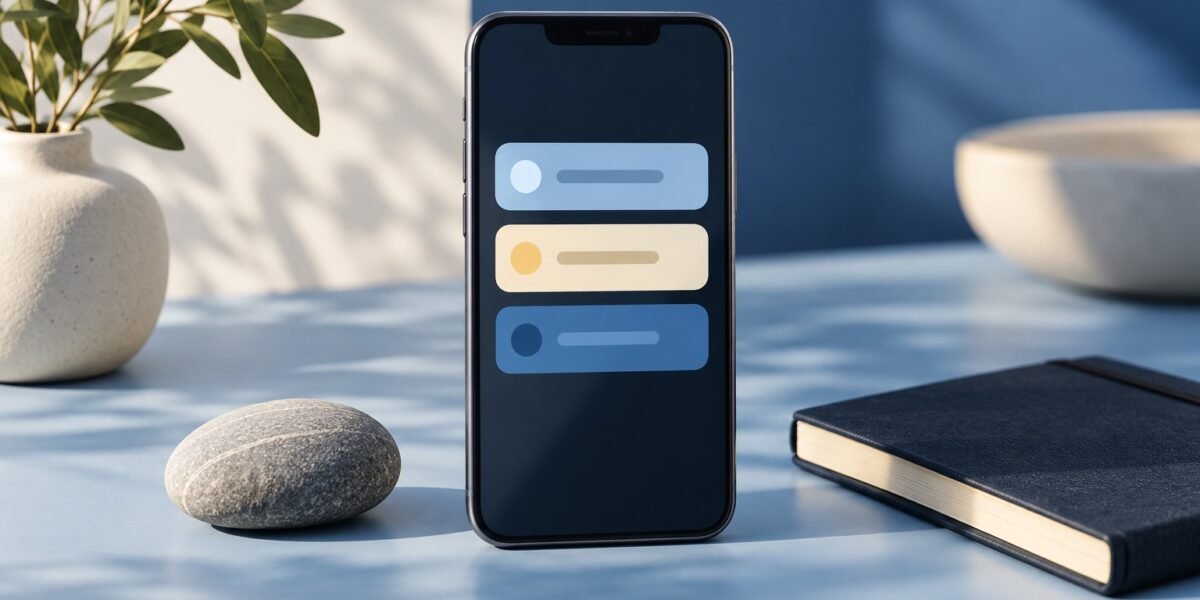
A useful notification tells you something you need to know at the right moment. A noisy phone treats a delivery update, a group-chat reaction, and a store promotion as equally urgent. You can change that without turning every alert off.
Start with a few apps that interrupt you often. This is a settings cleanup you can adjust as you go, not a challenge to make your phone silent. Keep a short note of what you change so you can reverse an adjustment that does not work.
Sort alerts by what you need to do
- Act now: alerts you genuinely need to notice promptly, such as an expected call or a time-sensitive work message.
- Check later: useful information that can wait until you open the app.
- Skip: promotions, repeated reminders, or updates you consistently dismiss.
Classify the type of notification, not just the whole app. A shopping app may send both an order update and a sale announcement. A messaging app may contain an essential conversation alongside a busy social group. If the app offers separate controls, use them.
Change one app on iPhone
On iPhone, open Settings, then Notifications, and choose an app. You can change whether it is allowed to notify you and adjust available alert options. Apple also documents Scheduled Summary for collecting selected notifications for later delivery. Options can vary by app and iOS version. See Apple’s notification settings guide.
Begin with one low-priority app. If you still want its information, try reducing how prominently it interrupts you rather than immediately disabling everything. Use the app’s own settings to look for separate marketing, activity, or message controls when available.
Change one app on Android
On Android, start in Settings → Notifications → App notifications, then select an app. Google explains that supported devices and apps may offer notification categories, plus alerting or silent options. Menu names and available controls differ between manufacturers and Android versions. See Google’s notification guide.
If your menus differ, search Settings for “notifications” and use the device manufacturer’s instructions. Do not assume an option is missing simply because it is in a different place. The aim is to keep the category you need and reduce the rest, not to reproduce another phone’s screen exactly.
Try a small before-and-after example
Suppose a group chat is useful for weekend plans but sends reactions throughout the workday. Your experiment might be to silence that conversation inside the messaging app, while leaving direct messages from your household unchanged. Later, open the group deliberately to catch up.
Or keep an order’s delivery updates while disabling a retailer’s promotional alerts. These are examples of decisions to make, not promises that every app offers those exact switches. If the controls are all-or-nothing, decide whether opening the app yourself is a workable alternative.
Test the alerts that matter
After changing settings, ask someone to send an ordinary test message through a channel you rely on. Check whether it arrives in the way you expect. Treat calls, alarms, app notifications, and any active quiet mode as separate settings rather than assuming one test covers everything.
Try the arrangement during a normal day before making broader changes. Restore an alert if you repeatedly miss information you need; reduce another if it still adds noise. Avoid changing unfamiliar emergency or accessibility settings just to make the screen look tidier.
Once your phone is less distracting, pair the cleanup with a focused work session. The useful result is a phone that supports your day, with fewer interruptions you did not choose. Settings references checked October 2, 2026.
Emma · Daycraftly
A good deal is more than a crossed-out price. I’m all about clever finds, useful products, and checking what you actually get for your money. From AliExpress discoveries to everyday essentials, my focus is on the details behind the offer: materials, features, seller information, and return terms. Think less impulse-buy clutter and more things you’ll be glad you found.
Join the conversation
Share a useful tip or ask a question. Comments are reviewed before publication. Your email address will not be displayed.

Leave a Reply