
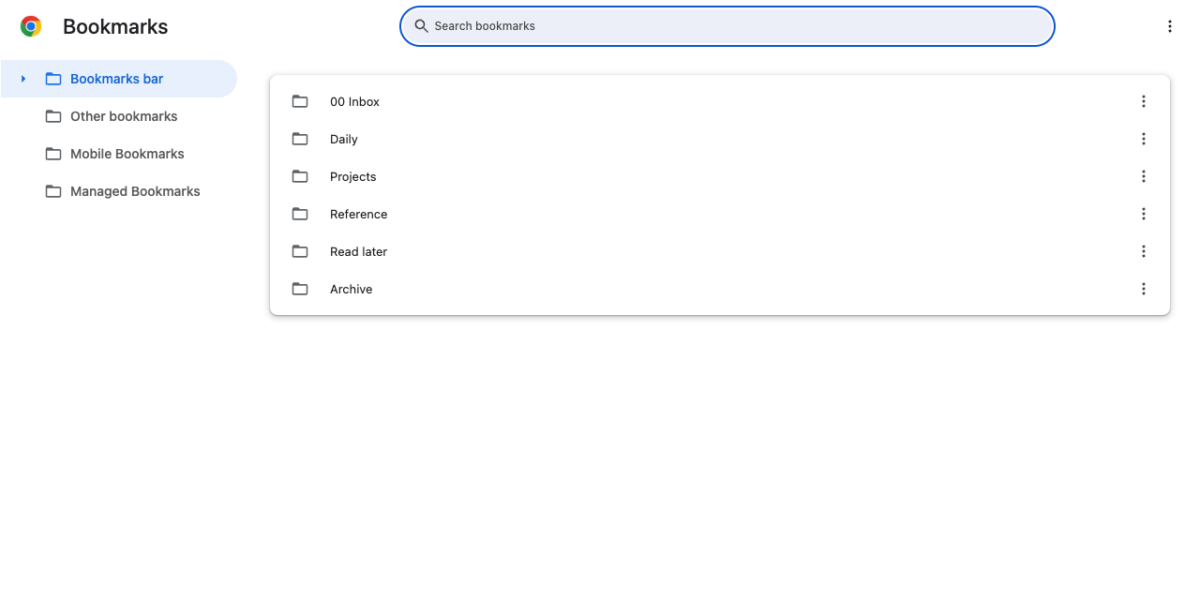
To organize browser bookmarks, start by exporting a backup, then sort saved pages into a small set of folders, rename the links you use most, and give unread items a separate queue. You can do this with the tools already built into your browser. The important part is knowing which controls change a bookmark, which controls change its location, and which recovery options can overwrite what you have now.
This desktop manual walks through Chrome and Firefox with real interface screenshots, then covers the equivalent Favorites workflow in Microsoft Edge. If you searched for how to organize bookmarks or how to create a Firefox bookmark folder, you can follow the relevant section without reorganizing your entire browser at once.
Checked October 5, 2026. Screenshots were captured in separate English-language test profiles on macOS: Google Chrome 154.0.8037.95 and Firefox 157.0. They show sample folders and public links, not a reader’s personal bookmarks. Windows controls can look different, and managed work browsers may restrict changes. Edge instructions below were checked against Microsoft documentation, not a local Edge installation. Click any inline screenshot to open its full-size image.
What changed in 2026—and what still works
Firefox 157, released September 29, 2026, introduced a visual refresh and enabled the updated sidebar for everyone. That makes some older screenshots a poor guide to the surrounding browser chrome. The Library remains a useful place for focused bookmark management; the Firefox screenshots here come from that release.
In Chrome, distinguish the full Bookmark Manager from the Show all bookmarks panel. Google’s current bookmark guide describes both, including visual/compact views and additional sorting choices in the panel. This manual uses the full manager so the folder tree and destination are easier to see. Do not expect the two surfaces to have identical menus.
For Edge users, Microsoft says Collections is no longer available starting with Edge 149, released June 4, 2026. Organize saved website links in Favorites. When migrating older Collections content, note that moving pages to Favorites transfers URLs, not images, notes, or other non-page items. Account-specific recovery options are described in Microsoft’s notice.
1. Open the right bookmark manager
First check which browser profile is open. A personal profile and a work profile can have different saved links even on the same computer. Choose one collection to organize, and avoid signing into an unfamiliar account just to make the list match a screenshot.
| Browser | Desktop route | What opens |
|---|---|---|
| Chrome | Three-dot browser menu → Bookmarks and lists → Bookmark Manager | A tab with folders on the left and the selected folder’s contents on the right. |
| Firefox | Application menu → Bookmarks → Manage bookmarks | The Library window, separate from an ordinary webpage. |
| Edge | Settings and more → Favorites → More options → Open favorites page | The Favorites management page. |
Chrome users can also type chrome://bookmarks/ directly into the address bar. On Windows, Ctrl+Shift+O opens Chrome’s manager; on Mac, use Option+Command+B. These shortcuts are listed in Google’s keyboard reference. If a shortcut is intercepted by another app, use the menu route instead.
Before touching anything, locate one bookmark you recognize. Open its folder and confirm that it is the version you expected to manage. A missing toolbar link may simply be stored under Other bookmarks; it is not evidence that your data was deleted.
2. Export a backup before a large cleanup
An export gives you a separate copy of saved titles, addresses, and folder structure. It does not download the contents of every webpage. Save it in a private location: a list of links can reveal internal systems, research topics, or account-specific addresses. Use a name such as bookmarks-before-cleanup-2026-10-05.html so its purpose is obvious.
Chrome: save an HTML export
- Open Bookmark Manager.
- Click the manager’s three-dot menu at the top right, inside the manager, rather than the main browser menu.
- Choose Export bookmarks.
- Save the HTML file, locate it in your file browser, and check that the filename and location match your plan.
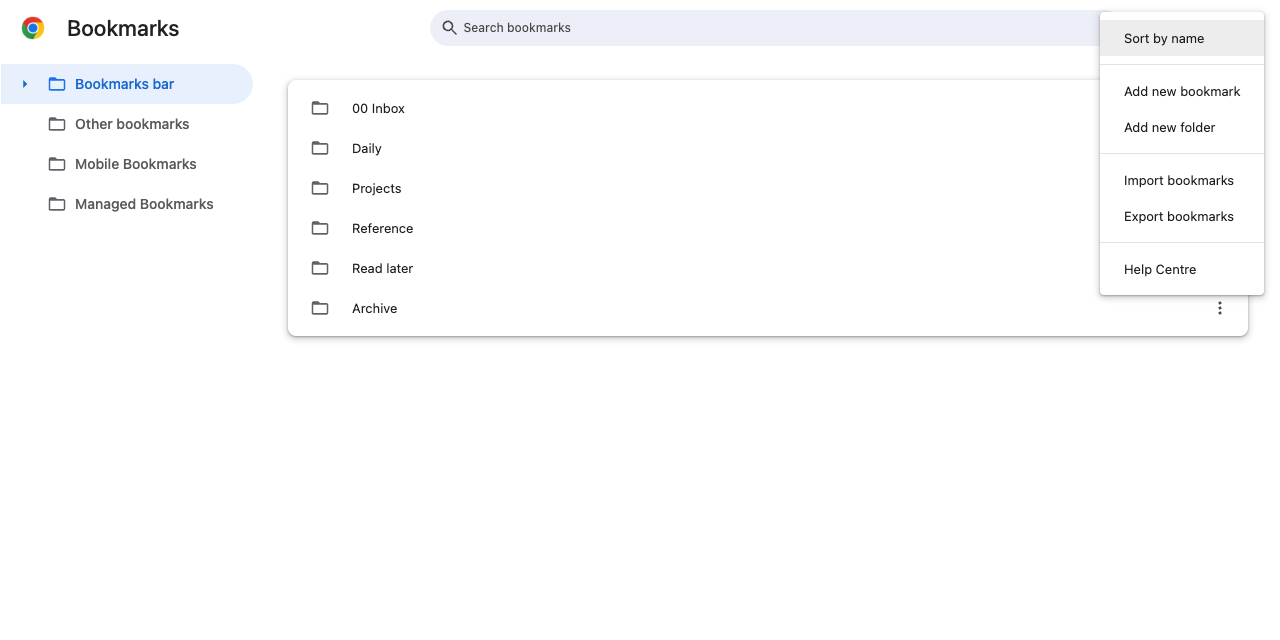
Google documents the matching transfer process in Import Chrome bookmarks & settings. Keep the pre-cleanup file unchanged. If you export again after organizing, give the new version a different name.
Firefox: choose HTML export or a Firefox backup
- Open the Library through Bookmarks → Manage bookmarks.
- Open Import and Backup. On macOS this can appear as a toolbar icon; hover over it to identify the command.
- Choose Export Bookmarks to HTML… for a portable file, or Backup… for Firefox’s own backup format.
- Save the file and verify that it exists before changing the collection.
Mozilla documents HTML export separately from backup and restore. The distinction matters: importing HTML adds bookmarks, while restoring a Firefox backup replaces the current bookmark collection. Do not test Restore on your only working copy just to see what it does.
3. Give each folder a clear job
A useful folder structure answers a question you are likely to ask later. “Where is the tool I use every morning?” is different from “Where did I save the instructions for that project?” Start with the structure below, then remove any category you do not need. These names are an organizing suggestion, not browser requirements.
| Folder | Put here | Review rule |
|---|---|---|
| 00 Inbox | New links whose purpose you have not decided yet. | Empty it during a short recurring review. |
| Daily | A small set of tools you deliberately use often. | Remove links you keep skipping. |
| Projects | One folder per active piece of work. | Archive or dismantle a project folder when it ends. |
| Reference | Instructions and resources worth finding again. | Name each link by the question it answers. |
| Read later | Pages you intend to read once. | Read, discard, or promote to Reference. |
| Archive | Inactive material with a reason to keep it. | Keep it off the everyday toolbar. |
Avoid building several levels before you have any links to put in them. For a small project, Projects → Website refresh may be enough. Add another level only when it resolves a real navigation problem. A folder containing one bookmark is not automatically wrong, but dozens of such folders may make every lookup slower.
Our shorter guide to organizing bookmarks around real tasks explains the planning approach. The rest of this manual shows how to implement it in the browser.
4. Create folders and move bookmarks in Chrome
Create a folder in the right place
- Open
chrome://bookmarks/. - Choose the intended parent in the left column, such as Bookmarks bar or Other bookmarks.
- Open the manager’s three-dot menu and select Add new folder.
- Enter a specific name and click Save.
- Open the parent again and verify that the folder is there.
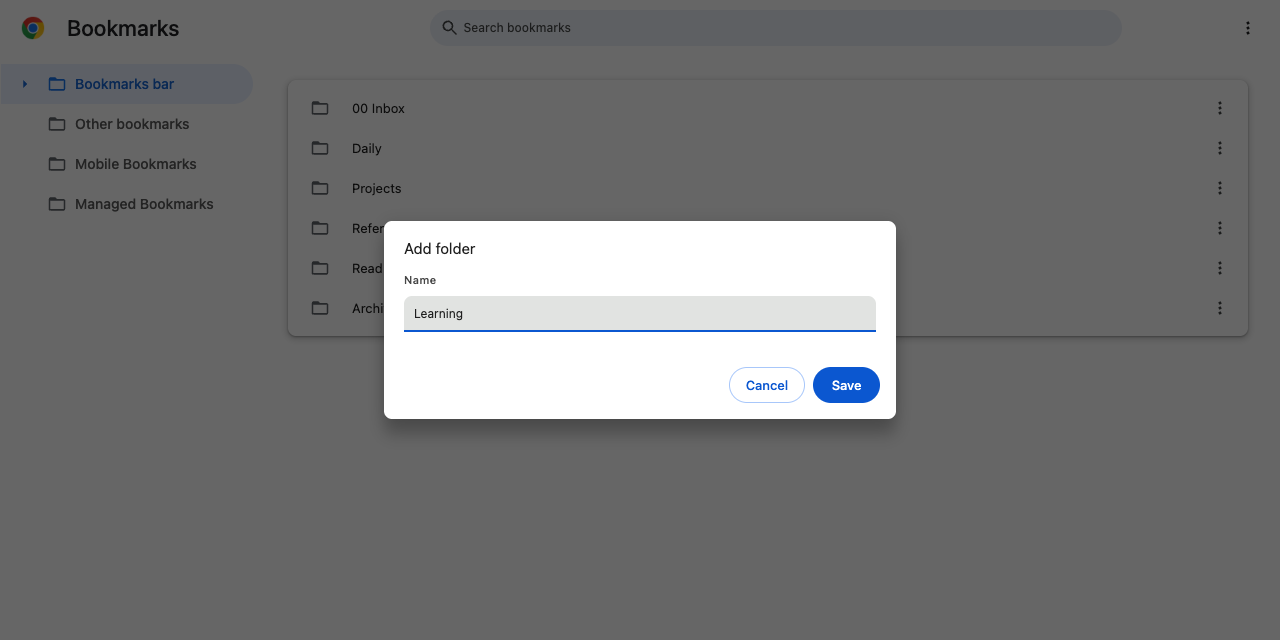
In the screenshot, “Learning” is just the proposed folder name; the dialog has not been saved yet. A folder on the Bookmarks bar is useful when you want direct access from the toolbar. Put less frequently used material under Other bookmarks rather than turning the bar into a second long list.
Move a small batch, then confirm its destination
- Open the folder holding the link you want to move.
- Drag the link onto the destination folder in the left column. For several links, select the intended items first; use Ctrl-click on Windows or Command-click on Mac to make a nonconsecutive selection.
- Open the destination and check that the titles and addresses are the ones you intended.
- If an item landed in the wrong folder, move that item back before continuing with the next batch.
Practice with one unimportant bookmark before selecting a large group. A drag onto the wrong row can change your organization without producing an obvious error. Keep the source and destination names visible, and do not confuse moving a bookmark with deleting the underlying webpage; those are unrelated actions.
Rename and sort deliberately
Use a bookmark row’s menu and choose Edit when the saved title is vague. Replace a title such as “Documentation” with “WordPress — publishing help” if that is what the page contains. Inspect the URL before saving; renaming a title should not accidentally change its destination.
The manager menu includes Sort by name. Use it when alphabetical order helps, not when you intentionally arranged a small Daily folder by priority. Sorting and manual ordering serve different purposes; take a moment to choose the one you want before applying it.
5. Create and use a Firefox bookmark folder
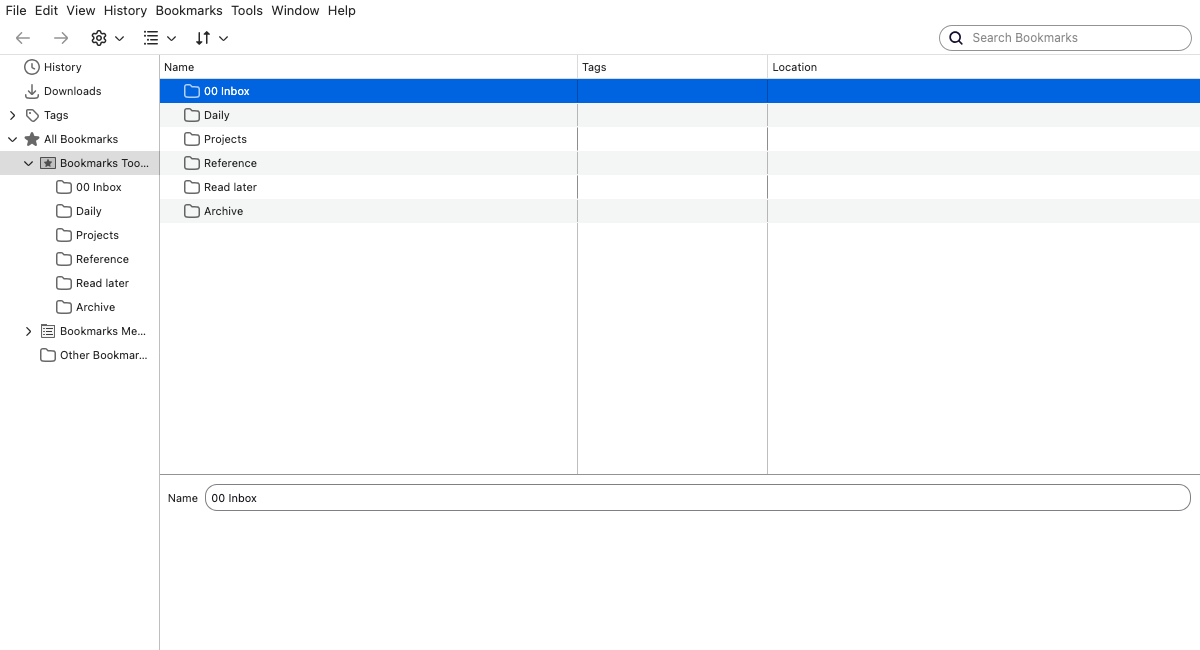
Firefox has several built-in bookmark locations. Bookmarks Toolbar is for toolbar access, Bookmarks Menu is another main container, and Other Bookmarks holds links outside those two. A folder you create belongs inside one of these locations; it is not a separate browser profile.
Create the folder
- Open Bookmarks → Manage bookmarks.
- In the Library’s left pane, expand All Bookmarks if necessary.
- Right-click the intended parent, for example Bookmarks Toolbar. On a Mac with a single-button setup, Control-click serves the same purpose.
- Choose New Folder…, enter a name such as “Learning,” and confirm the dialog.
- Expand the parent and open the new folder to check its location.
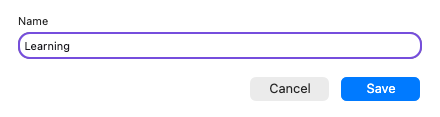
Mozilla’s folder instructions use this parent-first workflow. Some older instructions refer to optional fields that may not match your build. The essential decisions are the folder’s name and where it belongs; you do not need to fill in a description to establish a useful structure.
Save a new page directly into your Firefox folder
- Open the page and click the star in the address bar. If the editor does not remain open, click the star again.
- In the bookmark editor, check Name and open Location. Use Choose… if you need the full folder list.
- Select the intended folder and click Save. Open that folder in the Library to verify the result.
Put existing bookmarks into it
- Select the folder that currently contains the bookmark.
- Drag the bookmark from the contents pane onto the destination folder in the left pane.
- Open the destination and check the result.
- Repeat with a small group only after the first move behaves as expected.
If you cannot see a destination, expand its parent rather than dropping the item onto a similarly named folder. Two folders called “Reference” can exist in different places. Keep names specific enough that the intended destination is clear from the tree.
Sort a folder without confusing the Library view
To arrange a Firefox folder alphabetically, right-click that folder and choose Sort By Name. The Library also has view-sorting controls; changing a displayed column order is not the same organizational decision as arranging the folder itself. Mozilla explains the distinction in its bookmark sorting guide. Leave a deliberately ordered Daily folder unsorted if its order already helps you.
6. Find saved pages before saving them again
Use a distinctive word from a bookmark’s title or address when you suspect you already saved a page. Search is especially useful while the collection is still messy. It lets you find a known resource without finishing the entire folder cleanup first.
- In Chrome’s Bookmark Manager, click Search bookmarks.
- Enter a distinctive term, such as “Firefox.”
- Inspect the results and their destinations before making a new bookmark for the same resource.
- Clear the search to return to your folders.
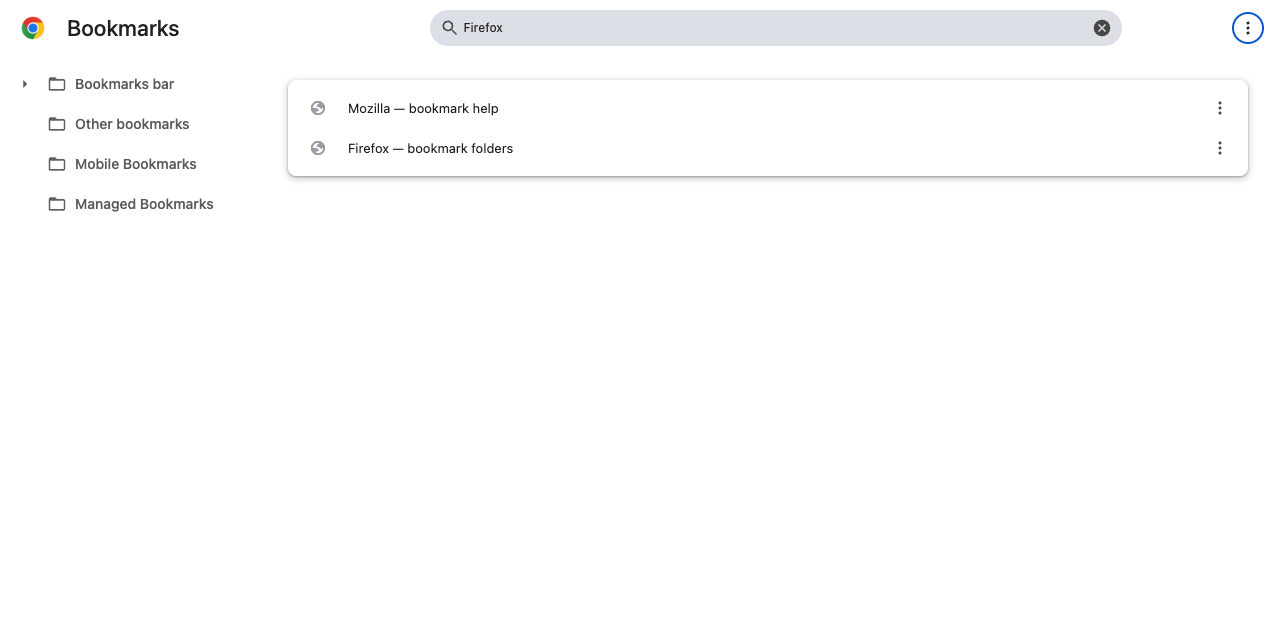
Chrome also supports address-bar bookmark search: type @bookmarks, press Tab or Space, and enter a term. This is documented in Google’s bookmark guide linked above. It can be quicker for everyday retrieval than opening the full manager.
In Firefox, use Search Bookmarks in the Library. The screenshot below shows a search in the same sample collection. The result list is a search view, not a new folder you need to maintain. Clear the search when you want to work from the folder tree again.
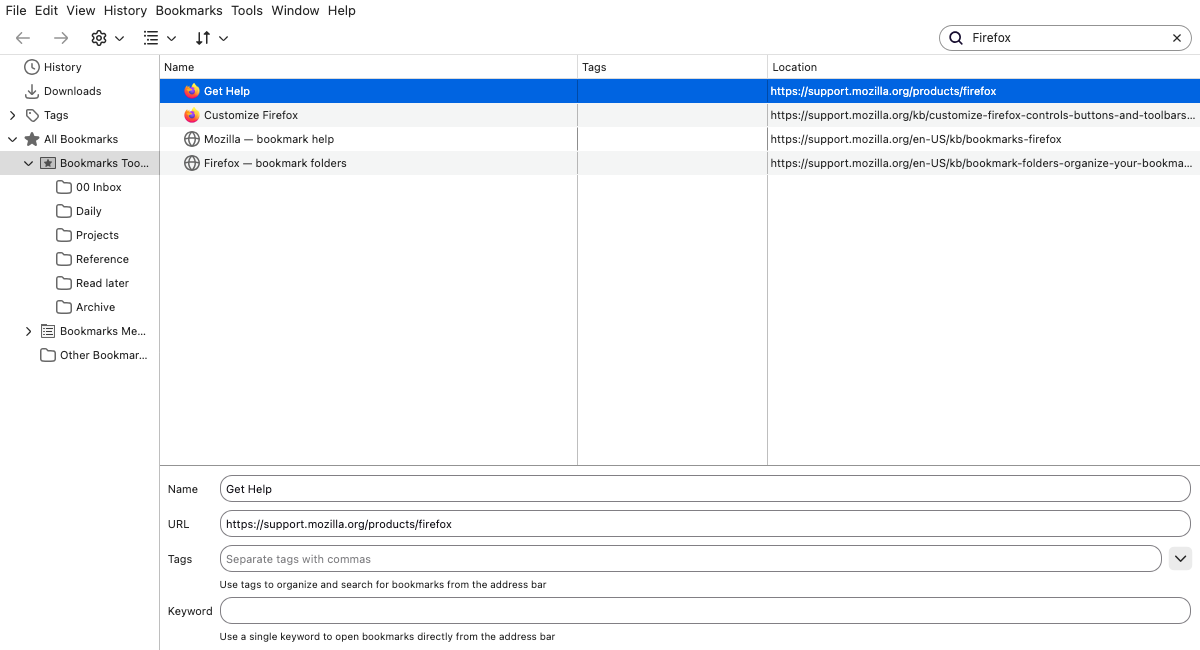
A descriptive title makes these searches more useful. Include the subject and purpose, not a string of keywords: “Firefox — bookmark folders” is readable; repeating “browser bookmarks” several times adds no practical value. For Firefox-specific navigation and other bookmark features, see Mozilla’s bookmark reference.
7. Organize Edge Favorites after the Collections change
Edge calls saved website links Favorites. Use the dedicated Favorites page for cleanup rather than looking for an old Collections walkthrough. Microsoft’s current organization guide gives this route:
- Open Settings and more → Favorites.
- In the Favorites panel, choose More options → Open favorites page.
- Create or select folders for the same purposes used above, then organize a small batch of saved links.
- For alphabetical order, right-click in the Favorites bar page and select Sort by name.
If your task is recovering former Collections content, stop before deleting any apparently duplicated folders. Check Microsoft’s retirement notice above for the options available to your account. A folder of migrated URLs does not prove that associated notes or images were preserved. This section is documentation-based; the screenshots in this guide show Chrome and Firefox only.
8. Remove duplicates and stale links carefully
Review one folder at a time. Start by searching for a recognizable site or title, then compare the actual addresses. Matching titles are not proof of duplication: two documents can share a heading while belonging to different projects. Conversely, two differently named bookmarks may open the same page.
- Same destination, same purpose: keep the clearer title in the location where you expect to use it.
- Same site, different useful pages: give each title a specific purpose instead of deleting one automatically.
- Login page or permission error: confirm the correct account before treating the link as dead.
- Redirected page: inspect where it leads before replacing the saved address.
- Old project: archive useful references and follow any work retention requirements.
Do not rewrite unfamiliar URL parameters just to make an address shorter. They can identify a document, view, or access context. If you want to save a cleaner address, navigate through the service to the intended page and test the resulting link. For the first pass, manual review is easier to audit than granting a new cleanup extension access to the entire collection.
9. Keep sync, import, and recovery separate
Sync is a way to keep devices aligned; a dated export is a separate recovery copy. Before reorganizing across several computers, establish which browser profile and account hold the collection you want. Make a small recognizable change, then check the other device before continuing with a large cleanup. Account and managed-device settings can affect the result.
When moving to another browser, import your HTML export once, inspect the imported folder, and test a few representative links. Repeatedly importing the same file can leave extra copies to sort through. Keep the original export until you have checked the result; do not use a successful import message as your only verification.
In Firefox, use Import Bookmarks from HTML… when your intention is to add the exported collection. Use Restore only when you intend to replace current bookmarks with a chosen backup. Export the current state first if it contains anything you may need to keep. Mozilla’s restore guidance linked earlier explains this replacement behavior.
If something appears to be missing after an update, first check the profile, account, toolbar visibility, and all main bookmark containers. Avoid stacking imports or restores while you are still diagnosing the problem. If you work on a managed computer, ask its administrator about restrictions before trying to bypass them.
10. Keep the system usable after the cleanup
When you save a new page, choose its destination immediately or put it in 00 Inbox for a later decision. Keep Read later for unread pages; after reading, either remove the link or promote it to Reference with a useful title. A research tab you only need for today may belong in a task-based tab group rather than the long-term bookmark collection.
During a short review, empty the inbox, check whether active project folders are still active, and remove obvious duplicate entries only after comparing them. You do not need a daily cleanup ritual. Use a frequency that matches how often you save new links and how quickly the inbox becomes hard to scan.
Finish by exporting an after-cleanup copy under a new filename. Then close the manager and try to find three real pages you use: a daily tool, a project resource, and a reference article. If each has an obvious home, the structure is doing its job. If one is still difficult to find, fix that particular name or location rather than redesigning every folder.
Quick answers to common bookmark questions
How many bookmark folders should I create?
There is no required number. Start with a handful of distinct purposes, and add subfolders only when the contents are difficult to scan. A small personal collection may need Daily, Reference, and Read later; a work collection may also benefit from project folders.
Why is my Firefox bookmark folder missing from the toolbar?
Check whether the folder is actually inside Bookmarks Toolbar rather than Bookmarks Menu or Other Bookmarks. Also check whether the toolbar is visible. A folder’s existence in the Library and its visibility on a particular browser surface are separate things.
Does deleting a bookmark delete the page or file?
Deleting the bookmark removes the saved link from that bookmark collection. It does not delete the webpage or the cloud document it points to. Still, preserve the address if it is your only route to an important resource, and remember that connected devices may reflect bookmark changes.
Will an HTML export preserve Firefox-only features?
Treat HTML as a transfer format for the link collection, not a guarantee that every browser-specific detail will survive. If a particular feature matters to you, check it after import and retain the Firefox backup as well. Do not replace a working collection until you have compared the result.
Emma · Daycraftly
A good deal is more than a crossed-out price. I’m all about clever finds, useful products, and checking what you actually get for your money. From AliExpress discoveries to everyday essentials, my focus is on the details behind the offer: materials, features, seller information, and return terms. Think less impulse-buy clutter and more things you’ll be glad you found.
Join the conversation
Share a useful tip or ask a question. Comments are reviewed before publication. Your email address will not be displayed.

Leave a Reply